Exchange Recap
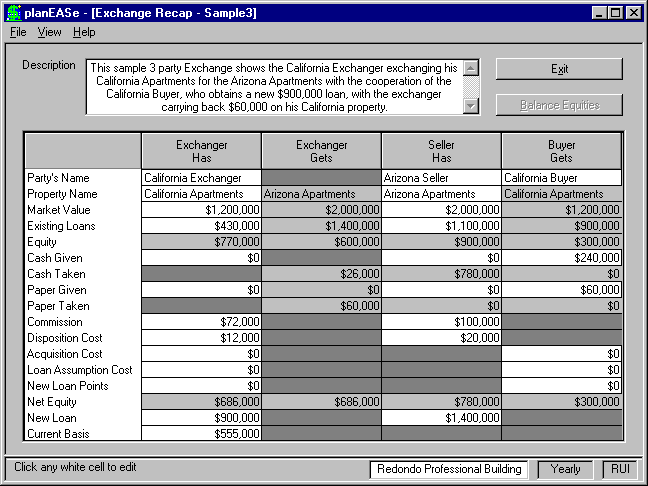
This function allows you to enter and balance a 1031 Exchange transaction on either a 2-party (Exchanger - Exchanger) or a 3-party (Exchanger - Buyer - Seller) basis. You may print the Recap Form, a Recap Report for each of the parties, and a Basis Adjustment Report for the Exchanger(s). You may save exchanges on disk, and open them for re-processing at a later time. Exchanges involving more parties are processed as multiple instances of 2 and/or 3 party exchanges. The Exchange Grid is shown in three colors (typically white, gray and dark gray). The white cells are for your entry of the exchange data. The gray cells are for display of the computed values when the exchange is balanced, and the dark gray cells are never used. If the screen is showing a 2 party form and you want to enter a 3 party exchange (or vice versa), pull down File/New Exchange and specify the other format.
Data Entry You must explicitly enter something (even $0) into each white cell of the Recap Form shown on the screen. For cells with amounts that you might think of as a percentage (like a 6% commission), you may enter a number less than 100 and the corresponding $ amount will be computed and shown (assuming the percentage basis number, like the Market Value for a commission, has already been entered). Items relate to the party named in the Column Heading, so Acquisition Cost in the Exchanger column in the example is the Acquisition Cost he must pay for the Seller’s Property. If a party has cash to balance the exchange, enter the maximum cash he has available, and you will be offered the opportunity to net out his cash contribution if the maximum amount is not required. For 3 party exchanges, the Buyer’s Cash Given and Paper Given must total to the Net Equity he is purchasing, or you will be prompted to adjust the entered values before proceeding.
Balance Equities If you have entered values into all the white cells, pressing this button will balance the exchange and display the balanced values in the gray cells, as shown in the screen above. If there is not sufficient cash in the Exchange to pay transaction costs, the costs not covered are paid in paper and shown in red for identification. If any party is both taking and giving cash in the balanced position, you are given the opportunity to net out that position. This is also true for paper in 2 party exchanges. Once the Equities have been balanced, the Balance Equities Button will become unavailable, and you may view the various reports by using the View option on the Menu Bar. Choosing View/Exchange Form will return you to the Exchange Form where you may change any of the assumed exchange values and choose Balance Equities again. At any time, you may use File/Print Form to print the form as shown on screen, whether data has been entered or not. Printing a blank form is useful for filling out the exchange by hand away from the computer. File/Print Recap and File/Print Basis print the Exchange Recapitulation and Basis Adjustment reports. You must press the Balance Equities button before printing these reports.