Help Menu
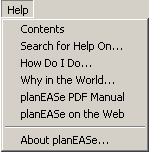
The Help Menu gives you many many ways to get help while running planEASe, from Context Sensitive help on the task you are performing (always available on 1) to help on the individual assumptions when entering them and extensive How To help on particular financial situations. The planEASe Help System includes all relevant information from this manual, indexed and organized for your immediate access to instructions immediately relevant to what you’re doing.
Contents brings up planEASe Help with the Contents Tree Window in the left pane, allowing you to easily branch off into any area of the planEASe Help system.
Search for Help on brings up planEASe Help with an alphabetical index of the topics in the help system so you can highlight and go to any topic listed in the index. Any time you are elsewhere in planEASe Help, you can search the same index by choosing the Search tab in the left pane of the Help Window.
How Do I Do brings up a list of common things that we get asked about doing in planEASe, like Lease Forecasting , or Variable Rate Loans. This is roughly the same information as shown in the How Do I Do section of this manual on page 207.
Why in the World brings up a list of common problems when running an analysis, like Revenue/Expense is wrong in first year, or Printing Problems. This is roughly the same information as shown in the Why in the World section.
planEASe PDF Manual brings up this complete Manual (bookmarked and linked) in your Acrobat Reader. Very useful if you're traveling without your printed Manual.
planEASe on the Web lets you access the planEASe Website from within planEASe.
Assumption Help is always available at the Assumption Edit Screen by doubleclicking on the two line help message shown below the assumption values. Assumption Help is Context Sensitive, so the help window starts out containing help for the current (highlighted) assumption.
Context Sensitive Help is always available by pressing 1. For instance, if you are performing Detail Analysis and press 1, the Help Window displays help on Detail Analysis. Pressing 1 is typically the fastest way to get relevant Help.