Exporting Graphs and Grids
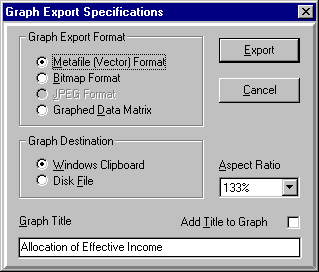
You may Export any Graph or Grid showing on screen to either the Windows Clipboard or to a disk file of your choice by choosing the Print/Export (or File/Export) Menu Option. If a Graph is being displayed, this Dialog appears, so you may specify the way in which you want to export the graph. If you export the graph to the Clipboard, you can switch to any other Windows program accepting graphs (like Word, WordPerfect, Ami Pro, Excel, Quattro, Lotus 123, Publisher, et cetera) and paste the graph into that application using the Edit/Paste command in the application (typically, the Edit/Paste shortcut key is c - V).
Graph Export Format may be set to:
Metafile (Vector) Format which copies the graph as a collection of sizable lines which many drawing and graphing programs (like CorelDraw) will allow you to edit. This is a smaller file than a Bitmap file, and it responds better to being sized in the receiving application, so it is typically the preferred format for transfer to other programs.
Bitmap Format Copies the graph as a picture (that you can edit pixel by pixel with Paintbrush and other picture editing programs). This is typically not the preferred transfer format, but you may want to use it for applications where a bitmap format is required.
JPEG Format copies the graph as a picture which is compatible with the Internet and Web Browsers. This format is not compatible with the Windows Clipboard, so it is not available (as shown here) when the Graph Destination is the clipboard. The planEASe Save as Web Page menu option saves all graphs as JPEG files.
Graphed Data Matrix Copies a Table of the data in the graph, rather than the graph itself. Use this when you want to transfer the data to, for instance, Excel, and then use Excel ’s graph capabilities to graph the data.
Graph Destination may be set to Windows Clipboard or Disk File, controlling where the Graph is exported. If you choose Disk File, you are asked to set the file name and directory.
Aspect Ratio allows you to control the width to height ratio for the exported graph. A graph twice as wide as high has an aspect ratio of 200%, whereas a graph twice as tall as it is wide has an aspect ratio of 50%. The aspect ratio of your computer screen is 4:3 or 133%. For the best results with your exported graph in its new home, you should set this value as close to the final aspect ratio in the receiving application as possible, although the exported graph will accept some sizing in that application.
Add Title to Graph allows you to add a title (normally printed in the shaded title box when printed by planEASe) to the Exported Graph by checking this (and entering/editing the title you want). The added title consumes space at the top of the graph that changes its appearance slightly when exported.
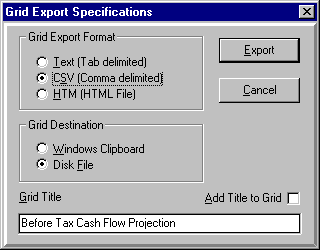
If you ask to export a Grid, the Dialog shown here is displayed, allowing you to specify whether you want to export to the Clipboard or a Disk File. If you export the grid to the Clipboard, you can switch to most other Windows programs (like Word, WordPerfect, Ami Pro, Excel, Quattro, Lotus 123, Publisher, and many others) and paste the grid into that application using the Edit/Paste command in the application (typically, the Edit/Paste shortcut key is c - V). No matter whether you export to a file or to the Clipboard, you may choose three alternative ways to export or save the Grid contents:
Text (Tab Delimited) uses a file structure well recognized by word processors for conversion of the file data into tables. To use this file with either Word or WordPerfect, open it, select all the text, and choose Table/Create with WordPerfect or Table/Convert Text to Table with Word
CSV (Comma Delimited) uses a file structure which virtually all Windows spreadsheets read and automatically convert to a spreadsheet.
HTM (HTML File) uses a file structure compatible with the Internet, all Browsers, and most Word Processors and Spreadsheets. If you use this format, your Page Setup settings for the body font and grid colors will be maintained and used in the receiving program(s).