Page Setup Dialog
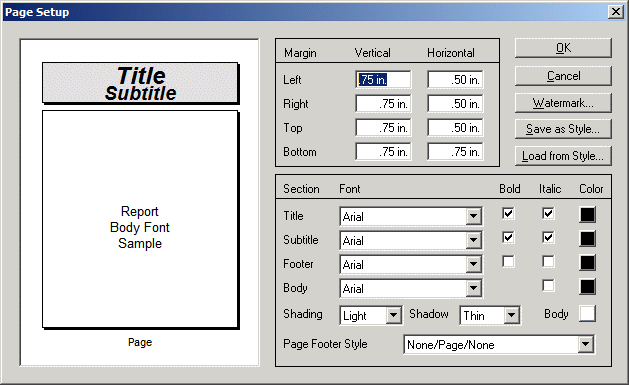
The Page Setup Dialog is available on the Lefthand Menu (either File or Print) in all planEASe Spoke functions. It allows you to set and save the margins, fonts, shading and shadowing and page footer specifications for your printed reports, graphs and Web Pages. The settings you make here are permanent until you again access this Menu Option and change the settings. All the settings you make, (with the exception of the Horizontal Margins) are reflected in the Page Preview window on the left side of the Dialog
The Watermark button brings up the Watermark Dialog (see the next page) allowing you to choose a Graphic file to use as a Watermark for your reports. Watermarks print centered in the Body area, allowing you to further brand your planEASe Reports. If you choose a Watermark, it is shown in the body area of the Page Preview.
The Page Setup dialog has two style buttons (Save as Style and Load from Style), as well as a color specification for each font and for the report body. Clicking any of the five color boxes at the bottom right of the dialog brings up a color dialog where you may choose any of 32 million colors. Clicking the Shading control and choosing Color from the list brings up the same color dialog so that you can specify the color of the report Title Box. Thus you may specify a Dark Blue Title Box with White Title and SubTitle Fonts (as we have for the Blue Carrara style). Color choices are reflected in the page preview at the left side of the dialog and are also effective for Web Pages saved with Save As Web Page.
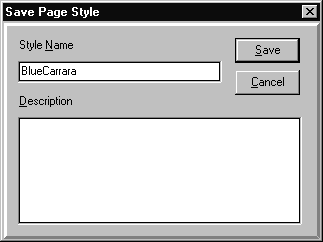
When you want to create and save a Page Style, just set the margins, colors, fonts and the other values on the Page Setup dialog to the values you want to save, and then press the Save as Style button. The Save Page Style dialog shown here will appear, and you should enter the Style Name you want, together with any descriptive text. If you choose a Style Name which is the same as an existing style, the existing style will be changed to the current settings (and the old settings will be discarded).
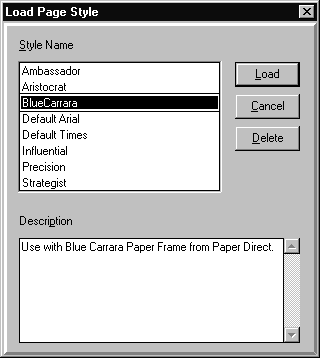
You may load a Page Style from your list of styles by pressing the Load from Style button. The Load Page Style dialog shown here will appear, and you may choose from your list of styles by clicking on the Style Name you want. The styles shown are those we have developed here and are shipping with planEASe.
The color specification for any color, including those in our shipped styles, may be obtained by opening the corresponding color dialog, pressing the Define Custom Colors... button, and copying the Red Blue Green values shown there. If you add that color to the Custom Colors palette, the color can be used later in the session.