Rent Roll
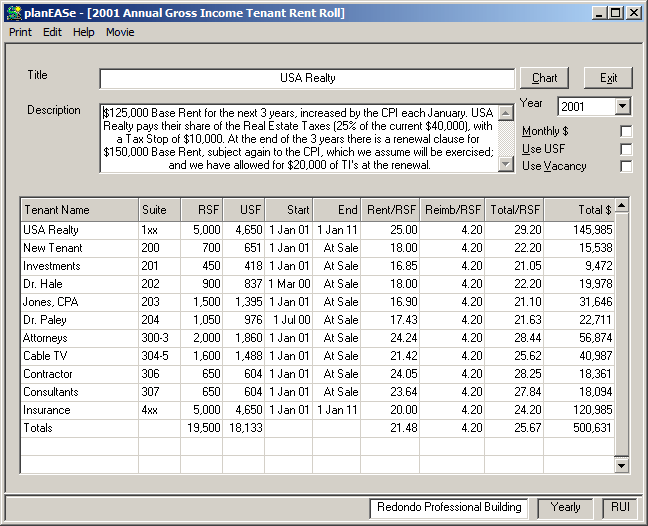
The Rent Roll Report is automatically produced from the values in your Assumption Set, as shown here for the Redondo Professional Building.
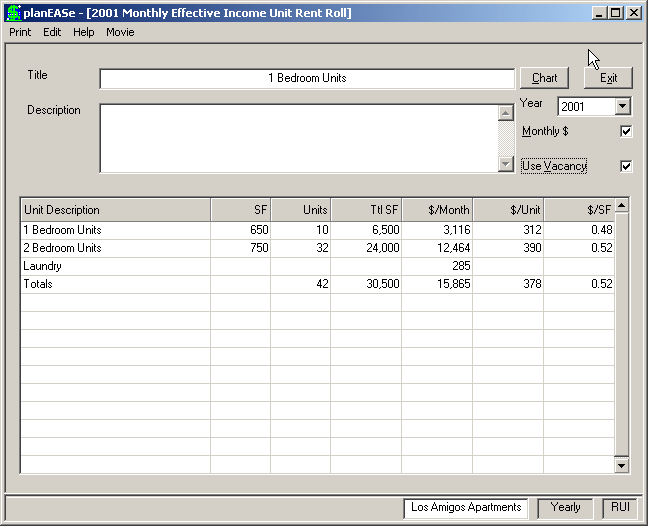
If you have used the Revenue Calculator in Unit mode or entered the Square Feet or Units field as less than the crossover value, the Unit Rent Roll will be displayed, as shown below for the Los Amigos Apartments. Otherwise, this Commercial Rent Roll is displayed.
You may sort the Rent Roll on any column by clicking the column heading and choosing ascending or descending order. If you have purchased the Graphics Extension , the Chart/Report button shown at the top right will be present, and you may press it to choose between several Pie Charts. The Pie Chart data and legend is presented in the same sort you choose for the Rent Roll.
Year ListBox allows you to choose the Year for which the Dollar values are shown.
Monthly if checked, shows all dollars as monthly amounts on the report and the Title Bar displays Monthly instead of Annual.
Use USF if checked in the Commercial Rent Roll, changes the Rent, Reimb and Total Columns to be per USF rather than per RSF.
Use Vacancy if checked, adjusts the dollar numbers to be before or after allowing for vacancy and the Title Bar displays Effective Income instead of Gross Income.
The Description Box above the report grid shows the Assumption Page Notes for the first Revenue Page for the Highlighted Tenant / Unit. When printing (or saving the report as a Web Page) you may optionally include these notes in the report by checking the Include Lease Description Text CheckBox in the Print Options Dialog.