Report Packages
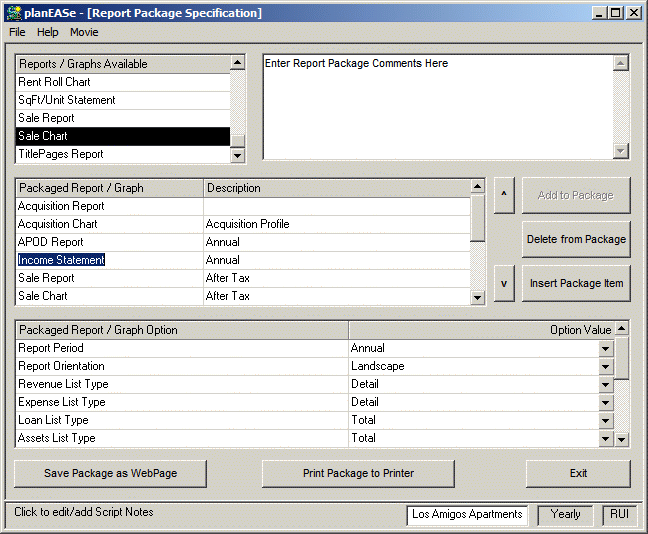
The Report Packages menu option allows you to specify, modify, save, recall and print lists (packages) of planEASe reports and graphs either to any printer you have (including Acrobat PDF printers) or as WebPages (a.html file), where the WebPages or PDF reports become one file that you can email. The packaged reports and graphs will be for the Assumption Set (or Portfolio) currently loaded in planEASe. All planEASe reports (other than Sensitivity and Risk Analysis) are available to be listed, and all Graphs and Charts (other than those for the Income Statements) are available to be listed in a package. The screen here shows a Report Package under construction for the Los Amigos Apartments, asking for the Acquisition Report, an Acquisition Chart, etc.
Since the requested Income Statement is currently highlighted in the list, the options for this report are shown and available for change in the Options Grid below. Options are defaulted to the values you have previously set for these reports and graphs and, if they are reset here, the original settings will be restored once the package has been executed. Your option settings are saved with the saved Report Package, so re-outputting a saved Report Package will retain the same appearance. The page colors, margins and fonts are controlled by the current settings in Page Setup however, so you can easily output a Package in the Influential Page Style and re-output it in Blue Carrara for another client.
Buttons to the right of the Package List allow you to add, delete and insert reports and graphs to and from the list. The up and down arrow buttons move the highlighted report (the Income Statement here) up and down in the list. The reports and graphs are output in the order listed. Report Packages can be saved and recalled using the Open and Save Options on the File Menu.
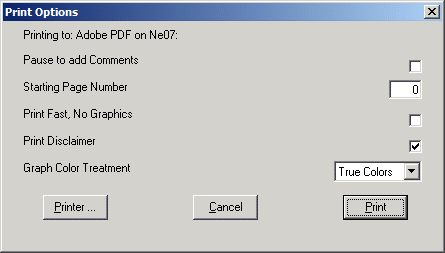
When you click on either of the two left side buttons at the bottom of the screen to execute the package, this Print Options dialog will appear to further specify the appearance of the packaged reports / graphs. The only unusual option here is Pause to add Comments, which, if checked, will allow you to add comments to each and every report and graph as it is output. For the other options you are referred to pages 71 and 72.