File Menu
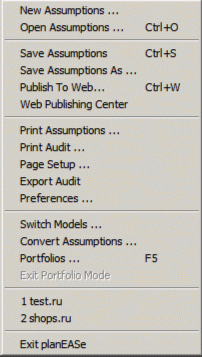
The File Menu at the Assumption Edit Screen offers these options:
New Assumptions allows you to enter a new Assumption Set. You are asked to complete an Assumption Set Specification Dialog by giving the Investment Name and other initial information, as described on page 9.
Open Assumptions allows you to retrieve (open) any Assumption Set you have saved during previous sessions. To open an Assumption Set, click its name in the file window to select it and then press the Open button. As a shortcut, doubleclicking the name both selects it and opens it. If you have made any changes in the current Assumption Set, planEASe will ask you whether to save the changes before opening the new Assumption Set.
Save Assumptions allows you to save the current Assumption Set with all the changes you have made since it was last saved. If the current Assumption Set has been named (that is, the Title Bar shows an Assumption Set Name rather than “Untitled”) Save Assumptions automatically replaces the Assumption Set on disk without further ado. If the Assumption Set is still untitled, planEASe proceeds as under Save Assumptions As.
Save Assumptions As allows you to save the current Assumption Set under any name you specify. If you choose an existing Assumption Set name, you are asked whether you want to replace the existing Assumption Set. If you choose a new name (by typing it into the file name text box), the Assumption Set is saved under that name and is added to the Assumption Set List displayed when you ask to Open Assumptions.
Publish To Web allows you to publish your analysis, in its current state, to the planEASe Website. For a discussion of publishing to the Web, see page 12
Web Publishing Center takes you directly to your personal Web Publishing Center, where you can view, edit or delete any published analysis, specify a map and photos to accompany the analysis and personalize the presentation with your logos, color combinations and font choices.
Print Assumptions allows you to print a report of the Assumption Set values as shown in Assumption Page format. If you have purchased the optional Reporting Extension, an Analysis Assumptions Report showing the assumptions formatted in English in a client-oriented report is available on the Reports / Assumptions Report Menu Option.
Print Audit allows you to print a report showing the audit results currently displayed in the Audit Window.
Page Setup See the Page Setup Dialog section on Page 73
Export Audit allows you to export the data currently being displayed in the Audit Window to the Windows Clipboard, from which you may paste it into other Windows applications supporting the clipboard. Shown grayed-out in the File Menu pictured on page 6, it is available only when an Audit is displayed in the Audit Window.
Preferences allows you to set several preferences to personalize your planEASe.
Square Feet / Unit Changeover controls the level below which planEASe will interpret the number entered in the Assumption Set Specifications Dialog to be Units instead of Square Feet. This controls whether planEASe produces Unit APOD and Rent Roll reports rather than SqFt oriented reports. It also controls whether the Assumption EzEntry Dialog shows grids for Unit Assumptions or SqFt assumptions. By default, this is 2,000, so an entered value of 1,999 would be interpreted as 1,999 Units.
Warn before Delete Assumption Page controls whether planEASe warns you before deleting an Assumption Page after you request Edit/Delete Page at the Assumption Edit Screen. You are always warned before deleting the last page of any Page Type, no matter what this setting.
Use Effective Income for Percentages allows you to change the basis for calculation of Percentages in the Common Size Statement, the Annual Statements, and the APOD. By default, percentages are expressed as a percent of the Gross Income. If you check this option, the percentages are expressed as a percent of the Effective Income (after subtraction of vacancies).
Round Sale Price to nearest allows you to round the Sale Price(s) shown in the Sale Report, Income and Annual Statements and other reports to the nearest dollar, hundred dollars or thousand dollars.
Show Reimbursements in Reports can be set to Separately or As Lease Revenue. Separately means that Reimbursements, when they are present, will be shown as an individual revenue in the Income and Annual Statements as well as the APOD Report, RentRoll, and Detail Analysis. When shown separately, you may choose between displaying them as a total, or individually by expense name.
Disclaimer allows you to set the disclaimer that (optionally) prints at the bottom of many reports. You may use as many lines as you wish, but using more lines results in less space being available for the report itself. That is, when the disclaimer is printed, planEASe subtracts the space used by the disclaimer from the space available on the page to print the report.
Switch Models This option will be used rarely, unless you have purchased the optional Partnership / LLC Models. There are two Models in the Real Estate Investment Analysis : RUI and RUM. The two Models are identical, except that the RUI Model, uses Internal Rates of Return (IRR’s), whereas the RUM Model uses Modified Internal Rates of Return (MIRR’s) and the Assumption Set includes the Safe Rate and Reinvestment Rate necessary to compute them.
In addition to these models, you may also choose the Installment Sale Analysis (the RSA Model) included with the basic planEASe, and documented beginning on page 139.
Likewise, there are two Models in the (optional) Limited Partnership / LLC Investment Analysis : RPI and RPM. The two Models are identical, except that the RPI Model, uses Internal Rates of Return (IRR’s), whereas the RPM Model uses Modified Internal Rates of Return (MIRR’s) and the Assumption Set includes the Safe Rate and Reinvestment Rate necessary to compute them.
Additionally, due to the increasing use of the Limited Liability Company (LLC) format for Group Investments, two additional models (RPR, corresponding to RPI, and RPF, corresponding to RPM) are available using titles of Group Member (instead of Limited Partner) and Managing Member (instead of General Partner). Other than the change of names, the RPI and RPR models are identical, as are the RPM and RPF models.
This Switch Models Menu Option allows you to choose to use any of the Models you have purchased. You may freely change between Models within the same Analysis (for instance, change from RUI to RUM or vice versa) and continue to work with the same Assumption Set. If you change from a Model in one Analysis to another (for instance from RUI to RPM) you must also choose from the Assumption Sets available for that Model after changing Models
Convert Assumptions allows you to convert the current Assumption Set from the Real Estate Investment Analysis to the Limited Partnership / LLC Investment Analysis (or vice versa). This Menu Option is only available if you have purchased the optional planEASe Partnership / LLC Models.
When you choose this option, the Convert Assumptions As Dialog appears, and you choose the file name for the converted Assumption Set. When converting to the Partnership Models, the Partnership / Group and Distribution Assumption Page values are set to zero, and one Fee page and one Funding page are added to the end of the Assumption Page List with zero values. After the converted Assumption Set is saved, you must choose File/Switch Models and choose the new model to open the newly saved Assumption Set.
Portfolios accesses the Portfolio Specification Dialog for Portfolio Analysis.
Exit Portfolio Mode is available if you are in Portfolio Mode, and simply exits it. See Page 199 for further discussion.
Recently Used Assumption Sets allows you to recall recently used Assumption Sets for further processing. As shown in the menu pictured on page 6, shops.ru and test.ru are available.
Exit planEASe allows you to exit planEASe. You may also exit planEASe at any time by doubleclicking the Control Menu (the little icon at the upper left corner of the planEASe Window) or clicking the x button at the right corner of the Title Bar. In either case, planEASe will terminate immediately after assuring that you have the opportunity to save any unsaved assumption changes.