Unit Sales Dialog
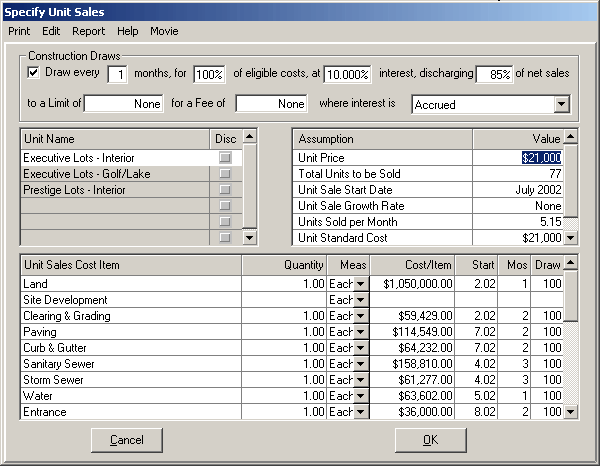
The Unit Sales Dialog, shown here with the values for the Pine Lake Homesites Assumption Set (pine lake absorbed.ru), allows you to enter the specifica- tions for Unit Sales projects, such as Subdivisions, Land Development, Condominium Conversions, Marina Slips, et cetera. It is accessed by choosing Edit/Unit Sales... from the Assumption Edit Screen if you have the optional Monthly Extension . If you access Edit/Unit Sales... while an Assumption Set containing a Unit Sales Specification is loaded (as we have here), the Specification as it currently exists in your Assumption Set is recovered into this Dialog for your further processing, so you may edit the specified values in the Dialog, or at the Assumption Edit Screen, as you choose.
When you have completed the entry of information in the Dialog and press the OK Button, planEASe will enter the Unit Sale Specification into your Assumption Set. The Specification consists of:
! one Unit Sales Parameter Page (abbr: Rev-usp) ! one Unit Sales Revenue (Absorption) Page (abbr: Rev-us a) for each Unit Type, OR ! one Unit Sales Revenue (Discrete) Page (abbr: Rev-us) for each line in the Unit Sales Schedule Grid. ! one Unit Sales Spending Page (abbr: Exp-us) for each line entry in the Unit Sales Cost Grid. ! one Unit Sales Draw Page (abbr: Loan-us) if you have chosen to generate a Unit Sales Draw loan
These various assumption Pages are discussed and defined further in this section.
When you press the Dialog’s OK button, planEASe removes the previous Unit Sales Specification (if any) from your Assumption Set and inserts the new specification as contained in the Dialog. If you press the Dialog's Cancel button, the Assumption Set stays as it was prior to entering the Dialog.
If you check the Draw every checkbox above the grid, planEASe will generate a Unit Sales Draw Page in your Assumption Set according to the instructions you enter here. Once that has been done, you may use Basic, Detail, Sensitivity and Risk Analysis on the Unit Sales Draw Loan as you would with any other loan. If you generate a Unit Sales Draw Loan, it will be inserted as the first loan in your Assumption Set. You cannot enter a Unit Sales Draw Page in any other way. You can, however, edit any of the assumption values shown, once the Page has been generated by the Unit Sales Dialog, and the Unit Sales Draws generated in the resulting analysis will correspond to the edited values. Additionally, appropriate assumption values of the Unit Sales Draw may also be varied in Sensitivity and Risk analyses. Sensitivity and Risk Analysis may be conducted with Loan Amount as the chosen Measure. If a Unit Sales Draw Loan has been specified, the Analysis will show the maximum loan balance during the life of the draw loan as the Loan Amount.
There are 3 Grids in the Unit Sales Dialog:
! Unit Type Grid listing the names of the Unit Types for which Sales are planned ! Unit Schedule Grid listing the unit sales (either Discrete or Absorption) for the Unit Type highlighted ! Unit Sales Cost Item Grid listing all the items of cost planned for the project, and their characteristics
Unit Type Grid contains two columns: the name of the Unit Type, and a Check Box on the right which changes between Absorption (unchecked) and Discrete (checked) Schedule Grids. The default Schedule Grid type is an Absorption Grid, but you may change to a Discrete Grid at any time by checking the Check Box on the right side of the Unit Grid once a Unit Type name has been entered. When you enter a new Unit Type name, you may:
! Press / or Click the Gray Unit Schedule Grid to the right. This opens the schedule grid for this Unit Type (signaled by the schedule grid changing from a gray to white background), and you may proceed to enter the schedule for the Unit Type. ! Press d to enter the next Unit Type. In this case the schedule grid to the right will remain gray, and will only turn white when you choose a Unit Type Grid line containing a completed Unit Type name.
Absorption Unit Schedule Grid rows are as follows:
! Unit Price is the price per unit for this Unit Type at the Unit Sale Start Date. ! Total Units to be Sold is the total number of this unit type sold, no matter when. ! Unit Sale Start Date is the date on which the sale of this Unit Type starts. ! Unit Sale Growth Rate is the annual percentage growth rate of the Unit Price for these units. The Unit Price grows at this rate every month for sales planned with Absorption Pages, IGNORING any Price Inflation entered in the Unit Sales Parameter Page (unless the Absorption Growth Override is used). ! Units Sold per Month is the number of Units sold per month (ie: rate of sales). This can be entered as a fractional number (eg: 2.45 units/month), and any fraction remaining is deferred to later months until it reaches a whole number. For example, 2.45 unit/month results in scheduled sales of 2, 2, 3, 2, 3, etc. ! Unit Standard Cost allows planEASe to allocate the Costs specified as Unit Sales Costs to the appropriate time period for Income Tax purposes. Unit Sales Costs affect cash flows at the time incurred. However, for tax purposes, they are allocated to the Units Sold, and deducted at the time of the Unit Sale. To accomplish this, the Unit Standard Cost times the number of Units Sold for each Unit Sales Revenue Page is added together to obtain the Total Standard Cost for the Project. Then each Unit Sales Cost in the Cost Grid is allocated to each Unit Sale based on the ratio of the Unit Sale Standard Cost to the Total Project Standard Cost. You may view this allocation in the Taxable Expense column of the Audit Grid for each of the Unit Sales Cost Pages. ! Unit Sale Cost is the Sales Commission charged for the unit(s) sold. Limited to 100 or less, it is treated as a percentage of the Unit Price.
Discrete Unit Schedule Grid columns are as follows:
! Date is the month that the unit(s) on this line of the grid will be sold (entered as a planEASe Date). Once a date appears here, you may increase / decrease it by one month by using the + and - keys. Dates less than or equal to the Acquisition Date (or equal to or greater than the end of the Holding Period) are not allowed. ! Units is your entry in the Unit Sales Schedule Grid Units column. ! Unit Price is the price that will be charged for each of the units entered on this grid line ! Std Cost is same as Unit Standard Cost above. ! Comm is same as Unit Sale Cost above.
Unit Sales Cost Item Grid columns are as follows:
! Unit Sales Cost Item is the name of the item, such as Signage. The name is used as the Page Title for the Unit Sales Spending Page generated for this line. You may use an “&” in front of the name to combine the item with the previous item in the normal planEASe reporting. This will not affect the Project Cost Summary, Project Schedule or Bill of Material Reports, which report one line per item always, ignoring the “&”. ! Quantity is the number of this Item required (normally one). The quantity you specify becomes available in the Calculator on the Unit Sales Spending Page for that item. ! Meas is the unit of measure for this item (defaulted to Each). When you begin a new Unit Sales Dialog, this column contains Each and SqFt as the available measures. If you want to add another measure (such as Tons, or Feet), just type it in here, and it will become available on all lines. The measure you specify becomes available in the Calculator on the Unit Sales Spending Page for the item. ! Cost/Item is the cost per unit for the item. The cost you specify becomes available in the Calculator on the Unit Sales Spending Page for the item. ! Start is the month and year the cost item begins, entered as a planEASe Date. Once a date appears here, you may increase / decrease it by one month by using the + and - keys. Dates less than or equal to the Acquisition Date (or equal to or greater than the end of the Holding Period) are not allowed. ! Mos is the number of months over which to spread the cost of this item (normally one). If more than one, the cost of the item will be spread equally across the number of months requested. Mos values which would cause spending after the end of the Holding Period are not allowed. ! Draw is the percentage of the item cost that applies to the draw percentage, if Generate Draws is checked. For instance, an entry of 90 here for an item costing $100,000 when the draws are specified to be 80% of eligible costs would generate a draw loan of $72,000.
Print Menu offers the usual choices for printing and exporting the Reports on the Report Menu (only when they are displayed on screen).
Edit Menu allows you to edit the Unit Sales Parameters and do several things to the Unit Sales Grids (the cursor must be in the grid you want to be affected):
! Insert/Delete Cost Item/UnitType/Schedule Item click on any row in any grid and choose Edit/Insert Item or Edit/Delete Item to insert a new row before it, or delete the selected row. For the Cost Grid, you may also choose to Cut/Copy or Paste a Cost Item Row. ! Increase/Shorten Start Dates increases or shortens ALL the dates in the Start column of the Cost Grid, or the Date column of the Schedule Grid, depending which grid you are in. ! Change Item to Title changes any Item in the Cost Grid to a Title. Titles (like Hard Costs and Soft Costs in the examples shipped) allow you to add subtotals to your Project Cost Summary and Bill of Materials Reports. They do NOT appear in the Assumption Page List when you insert your specification into the Assumption Set. ! Edit Parameters... brings up a window allowing you to edit the Unit Sales Parameters
PasteColumn Menu Option is available anytime the cursor is in the Cost Item Grid, and allows you to paste an entire column of information from the Windows Clipboard into the Grid beginning in the row where the cursor is located. For example, selecting PasteColumn / Cost Item pastes the clipboard data into the Unit Sales Cost Item column. If any data is already in that column, planEASe asks if you want to overwrite it. If there are more rows on the Clipboard than in the Grid, additional rows are automatically added. Any unacceptable values on the clipboard are skipped rather than pasted.
Anytime you use the PasteColumn Menu Option planEASe remembers the status of the Unit Sales Cost Item Grid before pasting, and offers the option to undo the Paste at the Edit / Undo... Menu Option where Undo is followed by the name of the action being undone, such as Edit / Undo Paste Cost Item. In addition, the Edit / Insert Row, Delete Row, Cut Row and Paste Row commands are remembered, and can be undone, one at a time, and in reverse order of occurrence.
Report Menu allows you to switch between viewing the Unit Sales Specification and the available reports. While being viewed, any report may be printed, saved as a web page, or exported by accessing the appropriate Print Menu choice.
General Tips for planning Unit Sales Projects All costs in the Unit Sales Costs Grid will be allocated to the times of the Unit Sales for tax purposes. Therefore any costs properly so allocable (such as land) should be included in the Grid. Likewise, any currently deductible expense should NOT be included in the Grid, but should rather be planned using normal planEASe Expense Pages. A similar treatment would apply to any revenues not associated with the unit sales.
There is no limit on the number of items in any of the grids, and the Draw Loan is structured so that additional draw costs incurred after the draw loan has been repaid simply reinitiate the loan. (sometimes called a “revolving line of credit”). This means that you may plan multiple phase projects with the planEASe Unit Sales Dialog. The operative limit here involves the courage and aggressiveness of the tax accountant. All costs in the cost grid are placed into inventory and charged against sales as they occur. This means that, in a ten year project, costs planned for year 10 are affecting tax deductions in years 1 and 2. The IRS may go along with this, depending on the persuasiveness of your tax and financial counsel.
Standard Costs, while shown as Dollars, may be any “equitable” measure of the relative worth (or size or weight or...) of the units sold. You might want to use Acres, Square Feet, Square Meters, or other measure in this field. Consulting an experienced accountant in this area is advised.
Unique aspects of planning Unit Sales Partnerships / LLCs
Because every sale in a Unit Sales project represents a sale of Partnership / LLC Assets, the Stepdown Allocation of Funds in the Partnership / LLC is different from a Partnership / LLC based on holding and operating a property. These Partnerships / LLCs follow the distribution rules in the table below.
Stepdown Allocation of Funds Available for Distribution in Unit Sales Partnerships / LLCs
FIRST: To pay any interest due to the General Partner / Managing Member on any loans he has made to the Partnership / LLC pursuant to funding shortfalls
SECOND: To repay the principal amounts of any loans from the General Partner / Managing Member
THIRD: To pay any arrearage for the Preferred Return to the Limiteds / Members
FOURTH: To pay the Preferred Return for the period to the Limiteds / Members
FIFTH: To repay the specified percent of the total investment by the Limiteds / Members
SIXTH: To pay the specified fee on sale to the General Partner / Managing Member
SEVENTH: Any remaining cash is split between the Partners / Members according to the percentage specified as Cash to Limiteds / Members.
Accordingly, since Capital Gains and Final Sale Proceeds are irrelevant for Unit Sales Partnerships / LLCs, the Sale Proceeds to Limiteds / Members and Capital Gains to Limiteds / Members Assumption Values are not used in Unit Sales Partnerships / LLCs.