Edit Menu
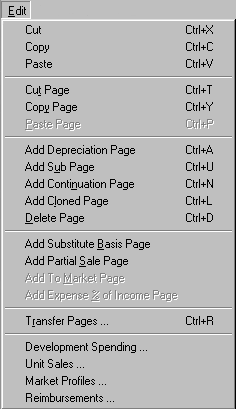
These commands allow you to control your Assumption Page List for an Assumption Set by adding and deleting assumption pages in various ways. These commands only affect Multiple Page Type pages. That is, the General Page Type pages at the top of the Assumption Page List cannot be added or deleted. The Cut / Copy / Paste commands at the top of the Edit Menu are the same as the normal Windows commands for Cut / Copy / Paste of any highlighted text to and from text boxes.
Cut Page deletes the currently displayed page and places a copy on the Assumption Clipboard for later use with the Paste Page command. Any previous contents of the Assumption Clipboard are automatically replaced by the contents of the cut page. You can move assumption pages (within the same Multiple Page Type) by cutting them and pasting them into a different location in the Assumption Page List.
Copy Page places a copy of the currently displayed page on the Assumption Clipboard for later use with the Paste Page command. Any previous contents of the Assumption Clipboard are automatically replaced by the contents of the copied page.
Paste Page is available if you have previously cut or copied an Assumption Page to the Assumption Clipboard and are currently displaying an assumption page of the same Multiple Page Type as that on the Clipboard. Pages are pasted in front of the currently displayed page.
Add Page allows you to add a new assumption page (of the same Multiple Page Type) immediately following the page currently displayed. This option is renamed based on the type of Assumption Page being displayed. For example, it would be renamed Add Revenue Page when a Revenue Page is displayed.. The assumption values on the added page will be the planEASe defaults (use Add Cloned Page and/or Copy/Paste Page to add a page with the same values as the displayed page). The Page Title is initially set to the Multiple Page Type (e.g. “Revenue” or “Expense”), which you should change to a more descriptive title when editing the new page.
Add SubPage is the same as Add Page, except that the added page contains a Page Title of “&”, (saving you the effort of editing the Page Title). Some Page SubTypes cannot accept SubPages, and this menu item will not be available when you are displaying those Page SubTypes. See page 78 for a discussion of the use of “&” in Page Titles.
Add Continuation Page is the same as Add Cloned Page (below), except that the added page contains a Page Title of “& Continued”, (saving you the effort of editing the Page Title). and a Start Date of “Continuation”. For Revenues and Expenses, the added page otherwise contains the same assumption values as the page currently being displayed. For amortizing Loans, if Balloon Payment Due is being used, the Original Loan Period on the continuation page is reduced by the time that the balloon payment is scheduled for. Thus a 30 year loan with a balloon payment in 24 months will have a 28 year Original Loan Period on the added continuation page to facilitate entry of Variable Rate / Payment Loans. For Depreciation Pages, if the Depreciation Start Date and/or Expenditure Date are after acquisition, the continuation page has dates one year later, to facilitate planning of annual capital spending. Some Page SubTypes cannot accept Continuation Pages, and this menu item will not be available when you are displaying those Page SubTypes.
Add Cloned Page is the same as Add Page, except that the added page contains the same assumption values as the page currently being displayed. Cloning a page saves the time of entering assumption values when you want the added page assumptions to be the same or similar to the current page. Add Cloned Page is functionally the same as using Copy Page followed immediately by Paste Page (except that the assumption page is not put on the Assumption Clipboard if you use Add Cloned Page, and correspondingly, the previous contents of the Assumption Clipboard remain undisturbed).
Delete Page allows you to delete the assumption page currently displayed on the screen. If the displayed page is the only page of its Multiple Page Type, deleting it means that you must use Edit/Transfer Pages to add a new page of that kind, so we warn you of this before you are allowed to complete the deletion.
Add Page SubType Page is titled for one or more of the Page SubTypes available depending on what Multiple Page Type is being displayed currently. For example, if you are displaying a Depreciation Page, you will be allowed to Add Partial Sale Page.
Development Spending allows you to access the Development Spending Dialog to plan (or re-plan) Development Spending for this Assumption Set. This capability is not available for Assumption Sets that contain Unit Sales assumptions.
Unit Sales allows you to access the Unit Sales Dialog to plan (or re-plan) Unit Sales for this Assumption Set. This capability is not available for Assumption Sets that contain Development Spending assumptions, and is not shown unless you have purchased the optional Monthly Extension .
Reimbursements allows you to access the Reimbursements Dialog to plan (or re-plan) expense reimbursements and/or Percentage Rent provisions for leases you have planned in your Assumption Set.
Market Profiles allows you to access the Market Profiles Dialog to plan (or re-plan) the market rates and other parameters for re-leasing expiring space in your Assumption Set.
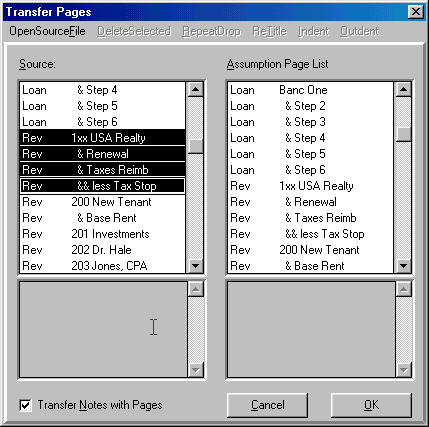
Transfer Pages allows you to Copy and Delete Assumption Page Blocks within and between Assumption Sets. This means you never have to enter a multi-page lease or loan twice. Just copy it from the Assumption Set where you entered it to the current Assumption Set using this Transfer Pages capability. Using other capabilities here, you can replicate Page Blocks (like multi-page leases) and delete Page Blocks. If you have an Assumption Set with no pages of a particular type (for instance, no expense pages), you can copy a page of that type from another Assumption Set into the current Assumption Set. Use this capability without fear, because any changes you make can be eliminated by pressing the Cancel button or the ` key.
When you request Edit/Transfer Pages, the Transfer Pages Dialog appears as shown here. The Source Assumptions are originally set to be the same as the current Assumption Set (use the OpenSourceFile menu option to open another Assumption Set for the Source Assumptions). You may then select one (or more) pages in the Source (on the left side) and copy (or drag and drop) them into the Assumption Page List (on the right side of the Dialog).
To select a single assumption page, simply click on it. To select a Page Block, as shown in the screen above, click on the first page in the block, and, holding down the S key, click on the last page in the block. To select non-contiguous pages, click each page while holding down the c key. All pages in a Page Block must be of the same page type (e. g. all expenses, or all loan pages).
There are two ways to insert the selected page or Page Block into the Assumption Page List on the right. To use the keyboard method, press c - c to copy the page or block to the clipboard. The cursor will turn into a double box, signifying that a page insertion is underway, and an Insertion Line will appear in the Assumption Page List showing where the page or block will be inserted. You can move the Insertion Line up or down using the u and d keys. D and U will scroll the Assumption Page List. When you have positioned the Insertion Line where you want, pressing / or c - v completes the insertion of the page(s). Once an insertion has begun, it must be completed. If you have selected General Pages, the values on those pages replace the corresponding values in the Assumption Page List rather than creating new pages.
To use the Drag and Drop method, click and hold on the Source page, and the cursor will turn into a page. Holding the mouse button down, drag the Source page over the Assumption Page List. The cursor turns into a dropping page, signifying that you may drop the page there, and the Insertion Line appears so you can place the insertion where you want. Dragging a Page Block requires that you press the S (or c) key while clicking and holding on the last page in the Block. The Drag and Drop method is easier if you first scroll the Assumption Page List so the desired insertion point is visible before beginning the Drag and Drop process. If you are scrolling the Assumption Page List by moving the Insertion Line to the top or bottom of the Assumption Page List, scrolling is facilitated by wiping the cursor side to side across the bottom or top of the list.
After inserting the selected page(s), they are automatically selected, and you may, if you wish, use the DeleteSelected menu option to cancel the insertion (DeleteSelected is also useful for deleting any Page Blocks that you select in the Assumption Page List). You can use the RepeatDrop menu option to duplicate the inserted pages as many times as you wish rather than repeating the insertion process again. The ReTitle menu option allows you to change the Page Title of any page in the Assumption Page List (doubleclicking the Page Title activates this option also). When you’ve changed the title, pressing / posts the new title to the list.
Indent inserts the “&” character in front of the Page Titles of all selected pages that do not already have it there.
Outdent performs the opposite function... it eliminates the “&” character from in front of the Page Titles of all selected pages in the Assumption Page List. This allows you to “hide” a group of pages (like Indent ing all the detailed Capital Spending in a development Pro Forma printed in annual mode) and then easily restore the original Page Titles to print the detailed Pro Forma for the first year in monthly mode. You can do the same thing by editing the Page Titles of all affected pages, but this sure is easier!!
Profiles allows you to transfer the Local Market Profiles (and all Variants depending on them) from one Assumption Set to another. It will only be available to you if: ! The Source Assumption Set contains one or more Local Profiles, AND ! The Target Assumption Set does NOT contain any Market Profiles. If these conditions are met, and you choose the Profiles menu option, you will first be asked to verify that you want the transfer of Market Profiles. If you choose Yes, the Profiles from the Source Assumption Set will be inserted in your Target Assumption Set, the Transfer Pages Dialog will terminate, and the Global Market Profiles will also be recovered from disk and inserted in your Assumption Set.
The transfer of Construction Draw, Unit Sales Draw and Permanent Loans, as well as Substitute Basis, Development Spending Cost Items, and Unit Sales Parameter Pages is not permitted. Likewise, deletion of these pages (created in the Development Spending and Unit Sales Dialogs) is not permitted. If you attempt this, you will be notified it is not possible. Copying such items is facilitated by saving the Assumption Set, opening it again, and saving it under a different name, so as to use the same assumptions as a “template” for the newly named project.