Unit Sales Spending Page
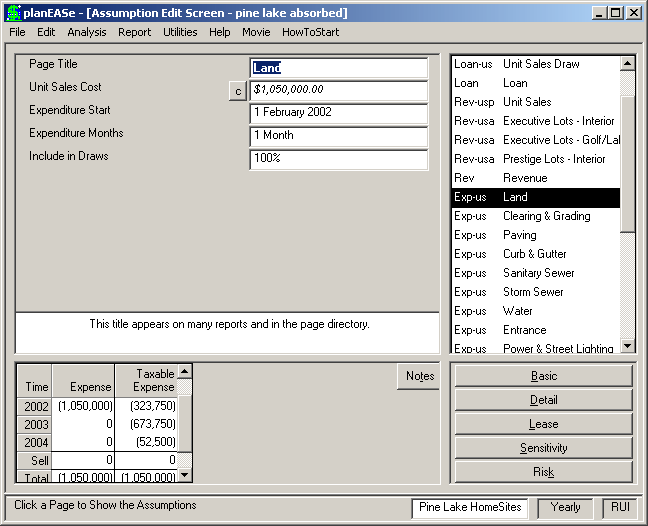
A Unit Sales Spending Page is a Page SubType generated by entering a Unit Sales Dialog, accessed by choosing Edit/Unit Sales... if you have the optional Monthly Extension . One Unit Sales Spending Page is generated for each Unit Sales Cost Item in the Grid in that Dialog. You can edit any of the assumption values shown, and the Unit Sales Spending generated in the resulting analysis will correspond to the edited values. Additionally, appropriate assumption values of the Unit Sales Spending may also be varied in Sensitivity and Risk analyses. You may discern a Unit Sales Spending Page in the As- sumption Page List by its Page Abbreviation: Exp-us. The assumptions in a Unit Sales Spending Page are:
UNIT SALES COST is the product of the Unit Sales Item Cost times the Item Quantity. These values, taken from your corresponding entries in the Unit Sales Cost Item Grid in the Unit Sales Dialog, are also entered in the Unit Sales Cost calculator. If you edit the amount shown here to zero (0.00), the Page Title will become a Title in the Unit Sales Dialog, and will disappear from the Assumption Page List the next time you press OK in the Unit Sales Dialog. If you edit the amount to any other value in the amount field, the amount will be posted to the Unit Sales Dialog as that amount, with a quantity of one (1) and a Measure of Each. If you want to edit the cost without changing anything else, then you must do so in the Calculator.
EXPENDITURE START is your entry in the Start column of the Unit Sales Cost Item Grid of the Unit Sales Dialog.
EXPENDITURE MONTHS is the number of months to spread the Unit Sales Cost over. If the number of months is greater than the number of months remaining in the year after the Expenditure Start date, the remaining amount is assigned to the following year(s). This is your entry in the Mos column of the Unit Sales Cost Item Grid of the Unit Sales Dialog.
INCLUDE IN DRAWS is the percentage of the Unit Sales Cost to include in the Unit Sales Draw Loan. This is your entry in the Draw column of the Unit Sales Cost Item Grid of the Unit Sales Dialog.