Detail Analysis
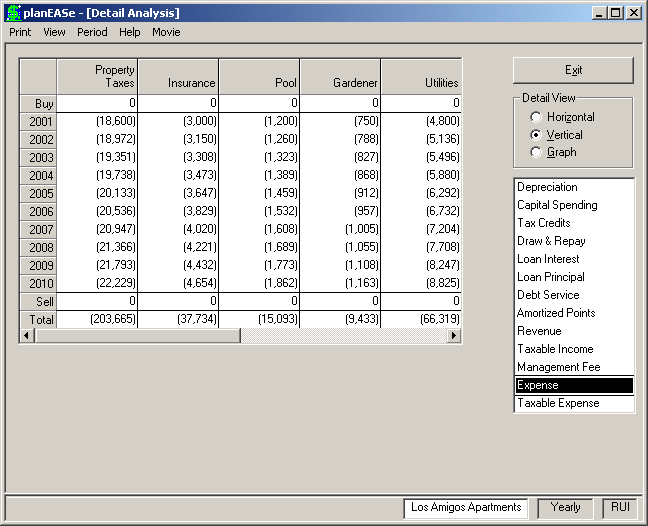
Each planEASe Model contains several Multiple Page Types. Typically, you enter several pages of each type in an Assumption Set. Basic Analysis adds the results for all the pages of a particular type together, and displays the total of these pages in the appropriate column. Detail Analysis allows you to examine and report the detail results for each group of pages of any Page Type. This screen shows the Expense Detail (in Vertical View) for the Los Amigos Apartments, an investment on your planEASe System Disk saved under the Assumption Set name apartments.ru. The Detail Analysis Screen contains two controls on the right hand side of the screen that you can use to control the Detail Analysis display:
Detail Page List shows a list of the detail reports available for the Model you are using, such as Depreciation, Capital Spending, et cetera. To view any of these reports, just click on the corresponding list item, and the report will be displayed in the current Detail View.
Detail View allows you to view the current Detail Page List item in Horizontal, Vertical, or Graph View by clicking on the corresponding option button. The Graph View is available if you have purchased the optional Graphics Extension .
Reimb Detail checkbox is located at the bottom right of the screen if you have chosen to Separate Reimbursements, and there are reimbursements in the current Assumption Set, and you have chosen to view Revenues. This checkbox controls whether the reimbursements are shown in detail (expense by expense) or in total.
When you request Detail Analysis, it will originally display the details for the Page Type currently being displayed in the Assumption Edit Screen using the same Detail View that you last used in Detail Analysis. Thus you may put a Detail Analysis Expense Graph on screen, return to the Assumption Edit Screen, edit the assumptions for one of the expense pages, and when you again request Detail Analysis the Expense Graph will automatically be the first Detail Analysis displayed.
Monthly and Quarterly Analysis may be produced here instantly if you have purchased the planEASe Monthly Extension . You may switch between Yearly, Quarterly and Monthly Analysis (and add/delete yearly totals) using the Period menu on the menu bar. In Basic and Detail Analysis, the Period menu is also available in Graph View, so you may switch between period views there as well.