Portfolio Specification Dialog
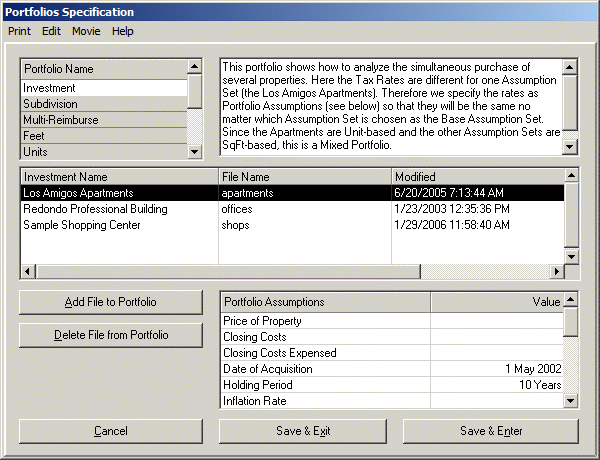
The Portfolio Specification Dialog allows you to enter the specifications for as many Portfolios as you may desire, including Comments, included Assump- tion Sets, and Portfolio Assumptions. It is accessed by choosing the File/Portfolios... menu option from the Assumption Edit Screen if you have the optional Portfolio Extension. Here we show the sample Investment portfolio (from the sample Portfolios File shipped with planEASe).
Portfolio Name Grid at the top left shows the names you have chosen for each Portfolio you have entered. There is a limit of 15 characters for the name. The Portfolio Name is constantly displayed in the Status Bar at the bottom of planEASe when you are in Portfolio Mode. It also is the default Report Subtitle for the Portfolio Reports while you are in Portfolio Mode. When you enter this Dialog, the Portfolio Name Grid starts by displaying the last Portfolio you accessed.
Comments area next to the Portfolio Name Grid allows you to enter and save any comments you want with each Portfolio Specification. The comments are printed in the Portfolio Configuration Report (available at the Print / Print Menu Option).
Assumption Set Filenames Grid (below the Comments and Portfolio Name Grid) allows you to enter as many Assumption Sets as you want to be included in the Portfolio. Pressing the Add File to Portfolio Button brings up the list of your Assumption Sets from which you can choose. Pressing the Delete File from Portfolio Button deletes the highlighted Assumption Set from the list in this Grid. The order of the Assumption Sets presented in detail in such reports as the APOD, Income and Annual Statements is determined by their order in this Grid, except that the Base Assumption Set is always presented last. Since you can control the order in the Grid (by deleting and adding) and choose which is the Base Assumption Set (by highlighting it here and choosing the Save & Enter button), the order of presentation in the reports is under your control.
Portfolio Assumptions Grid (below the Filenames Grid) allows you to override any of the assumption values on the first two pages (Investment and Investor’s) with whatever value you enter here. When an assumption value is overridden, the value entered here will be used for ALL Assumption Sets in the Portfolio while you are in Portfolio Mode. For instance, if you enter a 3% Inflation Rate here, all Assumption Sets will use a 3% Inflation Rate in the Portfolio, no matter what Inflation Rate is in the underlying Assumption Sets. Additionally, and for example, varying an overridden Inflation Rate (or any other overridden Assumption Value) in Sensitivity or Risk Analysis varies the Inflation Rate (or any other overridden Assumption Value) in ALL the Assumption Sets in the Portfolio. Simply enter a value to establish an Override. Delete the shown Assumption Value (by highlighting the Value and pressing the delete key) to eliminate the Override.
If you do not choose particular assumptions as Portfolio Assumptions (The Date of Acquisition, Holding Period, the Tax Rates, and the three Present Value Discount Rates), their values will be AUTOMATI- CALLY overridden by the values in the Base Assumption Set, which means that your Portfolio Reports may be different if you enter Portfolio Mode from different (Base) Assumption Sets.
Three buttons at the bottom of the Dialog control your exit from the Dialog:
! Cancel erases all changes made in the Dialog and returns you to the same situation you were in when you entered the Dialog. If you were in Portfolio Mode, you are returned to it, with the same Base Assumption Set you were in when you entered the Dialog. If you were not in Portfolio Mode when you entered, you are returned to the same Assumption Set you were in when you entered the Dialog.
! Save & Exit saves all changes you have made in the Dialog, exits Portfolio Mode (if you are in it) and returns planEASe to the Base Assumption Set you were in when you entered Portfolio Mode.
! Save & Enter saves all changes you have made in the Dialog, and enters Portfolio Mode using the Assumption Set currently highlighted in the Assumption Set Filenames Grid as the Base Assumption Set.
Edit Menu choices allow you to Cut, Copy and Paste Portfolios in your Portfolio List. Additionally, you may Insert a new Portfolio anywhere in the list and Delete any Portfolio you wish. Finally, you may Remove all Portfolios, in which case you will start again with a blank Portfolio List. Of course, Add Portfolio is not on this menu because you simply click on (or d arrow to) the first empty row in the Portfolio Name Grid to add a new Portfolio.
Print Menu allows you to print a report detailing any or all Portfolio Configurations to either your printer or a Web Page.
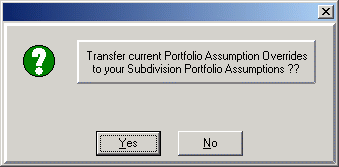
If you are in Portfolio Mode when entering this Dialog, you will be asked whether you want to transfer the current Portfolio Assumption Overrides to your Portfolio Specification, as shown here for the Portfolio named Subdivision. Accepting this invitation is a good idea. It means that for future use of this Portfolio, all the shared Portfolio Assumptions will be the same regardless of which Portfolio Assumption Set is chosen as the Base Assumption Set.
Making a Partnership / LLC for a Portfolio Just as there can be as many Assumption Sets as you want in a Portfolio, when you are structuring a Partnership / LLC for that Portfolio, there can be ONLY ONE set of Assumptions for the Partnership / LLC. Therefore, structuring a Partnership / LLC for a Portfolio consists of the following steps IN ORDER:
! Make the Assumption Sets for each Investment / Development that is going to be in the Portfolio as RU Assumption Sets using the RU Model Series. It will help you later if you use the same tax assumptions for each Assumption Set.
! Convert each Assumption Set to an RP Assumption Set using the File / Convert Assumptions Menu Option.
! Enter the RP Model Series with the File / Switch Models Menu Option, and Choose File / Portfolios to enter the Portfolios Dialog while in your choice of the RP Models.
! When in the Portfolios Dialog, choose the RP Assumption Sets that will make up your Portfolio and select the desired Base Assumption Set. Choose the desired Date of Acquisition and Holding Period in the Portfolio Assumptions Grid (you can do this in the next step at the Assumption Edit Screen if desired), and choose the Save and Enter Button to exit the Dialog in Portfolio Mode.
! At the Assumption Edit Screen, go to Pages 3 and 4 (the Partnership / Group and Distribution Pages) and note that the Assumptions there are automatically Portfolio Assumptions (in Blue) just as the Tax Assumptions, Date of Acquisition, Holding Period and Present Value Discount Rates are automatic Portfolio Assumptions for all Portfolios. Proceed to fill out the assumption values on these pages just as you would for any Partnership / LLC, accessing Basic Analysis to check your results as you go.
! After structuring your Partnership / LLC, you will want to save that structure for use in the future. You may do so by again choosing File / Portfolios at the Assumption Edit Screen. When you do so, you will be asked whether you want to transfer the current Portfolio Assumption Overrides to your Portfolio Specification, as shown in the picture on the previous page. Accept this invitation. planEASe will then add your Partnership / Group and Distribution Assumption Values to the Portfolio Assumptions Grid in the Portfolios Dialog (you can scroll that grid to examine the posting results).
! Exit the Dialog by pressing the Save and Enter button. This important step saves the current configuration of your Portfolio(s) so you can recover it in the future. After leaving the Dialog, you can re-enter it using the File / Portfolios menu option.
The Stepdown Allocation of Funds for a Portfolio Partnership / LLC is the same as specified for the corresponding underlying Assumption Sets (either Unit Sales or non-Unit Sales). In the case of a mix (Unit Sales Assumption Set(s) mixed with non-Unit Sales Assumption Set(s) in the Portfolio), proceeds from Sales of the Unit Sales Units are treated as a Return of Capital (pursuant to the Investment Return to Limiteds / Members Assumption Value) until the specified percentage of the invested capital has been returned. Following that, any proceeds from Sales of Units go to pay any specified Fee to the General Partner / Managing Member on Sale until such Fee has been paid. Any further proceeds from Sales of Units are split between the Partners / Members according to the Cash to Limiteds / Members Assumption Value.