Introduction
Portfolio Analysis is an optional planEASe extension that allows you to perform analysis that otherwise would be impossible or impractical. For instance, with the Portfolio Extension, you can analyze and report on:
1. Multi-Phase Unit Sales Development Projects 2. Multi-Phase Commercial Developments 3. Mixed-Use Development Projects (containing Unit Sales components or not) 4. Purchase of any type of Mixed-Use Property 5. Annual Projection Reports for Client Property Portfolios (for Asset Managers) 6. Properties with multiple Reimbursement Pools (perhaps Retail with Office above) 7. Multi-Property Portfolios offered for Purchase / Sale 8. A Partnership / LLC for any or all of the above (with the optional Partnership / LLC Models)
A Portfolio consists of as many individual planEASe RU Model (or RP Model if doing a Partnership / LLC Portfolio) Assumption Sets as you specify, using the Portfolio Specification Dialog located at the Assumption Edit Screen’s File / Portfolios... menu choice. Once you have specified one or more Portfolios, you may enter Portfolio Mode at any time by choosing the Save & Enter Button in that Dialog. When you enter Portfolio Mode, you will see the Assumptions for the Base Assumption Set (defined as the particular Assumption Set highlighted in the Dialog at the time you enter Portfolio Mode). Since you may highlight any of the Assumption Sets in the Portfolio before entering Portfolio Mode, it is simple to adjust which of those Assumption Sets will be the Base Assumption Set for your Portfolio Analysis.
While in Portfolio Mode, the Portfolio Name is constantly shown in the Status Bar (in light Blue, the Portfolio Color) to remind you that you are analyzing a Portfolio rather than just the Base Assumption Set. The Portfolio Specification Dialog allows you to choose many Assumptions as Portfolio Assumptions . This means the values for these Assumptions are used for all Assumption Sets in the Portfolio. Additionally, if you do not choose particular Assumptions as Portfolio Assumptions (The Date of Acquisition, Holding Period, the Tax Rates, and the three Present Value Discount Rates), the values for these assumptions in the Base Assumption Set are used as automatic Portfolio Assumptions . If you are in the RUM model (using MIRR rates), the Safe and Reinvestment Rates in your Base Assumption Set are also used as automatic Portfolio Assumptions . All Portfolio Assumptions (automatic or specified) are shown in the Blue Portfolio Color while in Portfolio Mode to remind you that they are being used throughout the Portfolio.
While in Portfolio Mode, the Basic, Sensitivity and Risk Analysis results shown are for the sum (total) of the Portfolio Assumption Sets, as are the Acquisition and Sale Reports. If you import the cash flows into the optional Utilities / Cash Flow Analysis using File / Import Cash Flows... the resulting cash flows imported are for the sum (total) of the Portfolio Assumption Sets.
While you are in Portfolio Mode, the Detail Reports, APOD, Income and Annual Statements appear as normal, but Revenue / Expense / Loan / Asset Detail is shown at the Assumption Set level (using the Investment Name rather than individual Revenues, et cetera). Any Reimbursement and Percentage Rent Revenue is combined with Lease Revenue in Portfolio Reports regardless of the setting for Show Reimbursements in Reports at File / Preferences.
There are three Portfolio Types: Units, Feet, and Mixed. Portfolio Type is determined by examining the Feet / Unit entry in the Assumption Set Specification Dialog for each Assumption Set in the Portfolio. If all entries are greater than the Feet / Unit Crossover Value in your Preferences Dialog, the Portfolio is treated as a Feet Portfolio Type and the APOD, Income and
Annual Reports offer options to show / print the Square Footage values for each Assumption Set (and/or the Total for all Assumption Sets). If all values in the Specification Dialog are positive and less than (or equal to) the Crossover value the Portfolio is treated as a Unit Portfolio where the APOD, Income and Annual Reports offer options to show / print the Unit values for each Assumption Set. If neither case applies, the Portfolio is treated as a Mixed Portfolio, and the APOD, Income and Annual Reports offer no options to show / print Unit or Square Footage values. The SqFt / Unit Income Statement is not available for a Mixed Portfolio. In the rare case that any Portfolio Assumption Set includes use of the Area Added Assumption on the Depreciation Pages or the Area Sold Assumption on any Partial Sale Pages, the Portfolio will be treated as a Mixed Portfolio. Portfolio Type is explicitly shown in the Property Type field of the APOD Report, and implicitly shown by the availability of Square Footage or Unit numbers in the affected reports.
We logically assume one owner for a Portfolio, so the tax assumptions on the Investor’s Page are automatically overridden. This has tax implications when Passive Losses are carried forward. With multiple properties, losses on one may be offset by gains on another, and only one $25,000 exception is available. Therefore, if Passive Losses are carried forward, Taxable Income for the portfolio may well be different (and more favorable) for the portfolio, as compared with the sum of the individual analyses.
While you are in Portfolio Mode, the following commands (at the Assumption Edit Screen) are not available. They become available again when you exit Portfolio Mode by choosing File / Exit Portfolio Mode at the Assumption Edit Screen or the Save & Exit Button in the Portfolio Specification Dialog.
! File / New Assumptions ! File / Open Assumptions ! File / Save Assumptions ! File / Save Assumptions As ! File / Save Reader File As ! File / Switch Models ! File / Convert Assumptions ! File / Recent Files (all four choices)
Other capabilities not available while in Portfolio Mode are:
! The File / Import Cash Flows... / Combine Cash Flows... capability of the Cash Flow Analysis Utility ! The Print / Compare menu option in Sensitivity Analysis ! The Change Investment Name Dialog normally accessed by clicking on the Investment Name in the Status Bar. This means that in order to change the Investment Name, the Feet / Unit entry or the Fiscal Year specification for any Assumption Set in your Portfolio, you must exit Portfolio Mode, access the Assumption Set to be changed, enter the changes, save the changed Assumption Set, and re-enter Portfolio Mode at the Portfolio Specification Dialog. There can be only one Fiscal Year for reporting, so the Portfolio Fiscal Year is defined by the Fiscal Year for the Base Assumption Set.
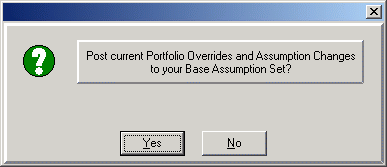
If you are in Portfolio Mode and choose File / Exit Portfolio Mode at the Assumption Edit Screen, planEASe offers the opportunity to Post current Portfolio Overrides and Assumption Changes to your Base Assumption Set, as shown here. Yes returns you to your Base Assumption Set with the current values of the Portfolio Assumptions substituted for your original assumptions and the Assumption Set Name changed to “Untitled” so that you will not accidentally save it over the original Assumption Set. If you have changed other assumptions (not Portfolio Assumptions) in the Base Assumption Set during your Portfolio Analysis, those values will also be posted if you choose Yes. The assumption values in the saved Assumption Set (on disk) remain the same as before the Portfolio Analysis, so you can save the changed Assumption Set under a different name, maintaining two copies, one with the Portfolio Assumptions intact.