Assumption EzEntry Dialog
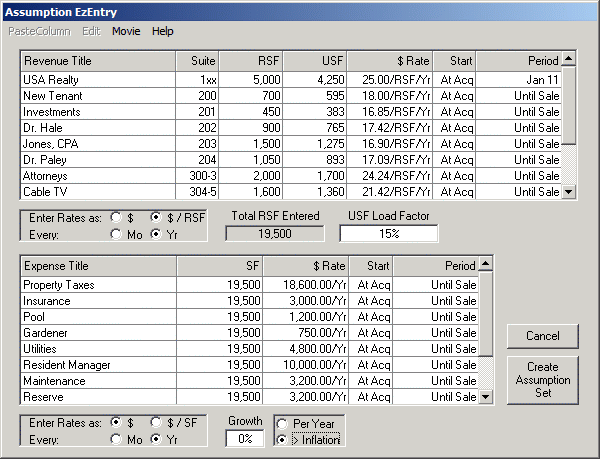
The Assumption EzEntry Dialog is accessed from the File / New Assumptions Menu Option, filling in the SqFt or Units entry in the Assumption Set Specifications Dialog, and pressing the EzEntry Button that is activated by your SqFt or Units entry. This Dialog provides a fast and convenient method of entering starting Assumption Values for an Assumption Set by allowing pasting of entire columns of information supplied from an external Rent Roll, APOD, or other information source for a property. The Dialog shown here for the Redondo Professional Building (offices.ru) was accessed by specifying a SqFt (not Units) value, filled in by exporting the planEASe Rent Roll and APOD Reports to Microsoft Excel, and then using the Paste Column Menu Option here to paste the information from Excel into the Dialog, which is shown ready to create the starting Assumption Set.
The two Grids, Revenue on top and Expense on the bottom, collect the assumption values as you type or paste them in. Entering a Revenue or Expense Title in the first column causes default values to be placed in the remaining columns. These values can be changed by editing or pasting different values. Rules for what can be placed in each cell (like “RSF must be 0 or greater” are shown in the Status Bar whenever you place the cursor in a cell by clicking in it, or using the /, u, d, l or r keys to change cells. These navigation keys only work to navigate to cells with information in them. Blank cells cannot be accessed. The Edit Menu Option is available anytime the cursor is in one of the grids, allowing you to Insert, Delete, Cut, Copy and Paste Rows. Both Grids allow you to enter as many rows as you want.
The PasteColumn Menu Option is available anytime the cursor is in one of the grids, and allows you to paste an entire column of information from the Windows Clipboard into the current Grid beginning in the row where the cursor is located. For example, selecting PasteColumn / RSF’s pastes the clipboard data into the RSF column. If any data is already in that column, planEASe asks if you want to overwrite it. If there are more rows on the Clipboard than in the Grid, additional rows are automatically added. Any unacceptable values on the clipboard (for instance, minus $25 for the Rate, or “abc” for the Suite) are skipped rather than pasted.
Anytime you use the PasteColumn Menu Option planEASe remembers the status of the Grid before pasting, and offers the option to undo the Paste at the Edit / Undo... Menu Option where Undo is followed by the name of the action being undone, such as Edit / Undo Paste Revenue RSF’s. In addition, the Edit / Insert Row, Delete Row, Cut Row and Paste Row commands are remembered, and can be undone, one at a time, and in reverse order of occurrence.
After all column pasting and editing of the Assumption Values, you may sort either grid on any column’s values by clicking the column header and choosing ascending or descending order. The order of the rows in the grids determines the order of the Assumption Pages in your starting Assumption Set, so sorting by Suite Number or RSF value may be appropriate. Any sorts you specify are also remembered by the Edit / Undo... command, and can be undone.
The Rate Definition Box es below the Grids allow you to control the definition of the $ Rates you enter or paste into the grids... $ / RSF/ Yr, $ / RSF /Mo, et cetera. If you specify $ / RSF (or $ / SF for Expenses),the calculator for the Page in the Assumption Set will be automatically filled with the information, allowing easier later access to the Reimbursements Dialog and more convenient use of the Continuation Page capability once you have created the Assumption Set.
To the right of the Revenue Rate Definition Box are additional controls for your use. The Total RSF Entered box simply keeps track of the total RSF values you have entered or pasted into the Revenue Grid, and cannot be accessed. The USF Load Factor box allows you to enter (if you want) a Load Factor (here shown as 15%) for the property. If this value is not zero, planEASe computes the USF for the row whenever the row’s RSF value is entered or changed. USF is computed as RSF times (1 - Load Factor), so, for example, a 20% Load Factor converts 1000 RSF to 800 USF.
To the right of the Expense Rate Definition Box are controls allowing you to specify a starting growth rate for your expenses and whether that growth rate adds to the inflation rate or not. These specifications apply to all expenses in the grid.
When you have completed your work in this Dialog, two buttons to the bottom right control your exit from the Dialog:
! Cancel Button simply ignores (and erases) any work done in this Dialog and returns you to planEASe in a new Assumption Set with one (empty) revenue and expense page, just as if you had never entered this Dialog For this reason, planEASe asks you to confirm the cancellation before proceeding.
! Create Assumption Set Button leaves this Dialog and creates a new Assumption Set with one Revenue Page for each row in the Revenue Grid containing a non-blank title and one Expense Page for each row in the Expense Grid containing a non-blank title. Any row in either Grid that causes an Annual Revenue or Annual Expense Amount of $100 or less will cause the resulting Assumption Page to have an Annual Revenue or Expense Amount of Zero. You will be notified if this occurs.
No matter which button you choose to complete your session with this Dialog, planEASe saves the contents of the Revenue and Expense Grids and offers the opportunity to Edit / Recover Last EzEntry Dialog the next time you access this Dialog by choosing the File / New Assumptions Menu Option. This opportunity is available until you perform one of the operations that triggers the Edit / Undo... Menu Option.
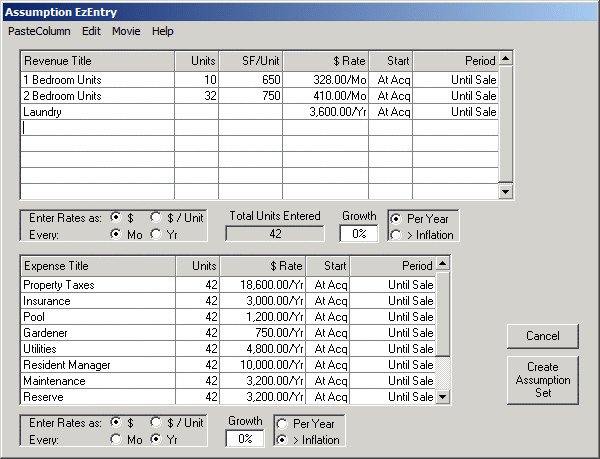
The Assumption EzEntry Dialog for SqFt properties was documented above. If you enter a Units value in the Assumption Set Specification Dialog and press the EzEntry Button, you will see the slightly different Dialog shown here — oriented to Units rather than RSF. The Dialog shown here for the Los Amigos Apartments (apartments.ru) was accessed by specifying a Units value, filled in by exporting the planEASe Rent Roll and APOD Reports to Microsoft Excel, and then using the Paste Column Menu Option here to paste the information from Excel into the Dialog, which is shown ready to create the starting Assumption Set. All concepts discussed previously for the SqFt Dialog apply to this Units Assumption EzEntry Dialog.